Contract and Change Order Management in SubmittalLink

.png)
Contract and change order management in SubmittalLink is a centralized system that lets construction teams create contracts, track change orders, and monitor project financials in real-time. Instead of juggling spreadsheets and email chains, you get a single source of truth for all your contract data, the same way SubmittalLink centralizes your construction submittal software workflow.
Creating Contracts: Purchase Orders and Subcontracts
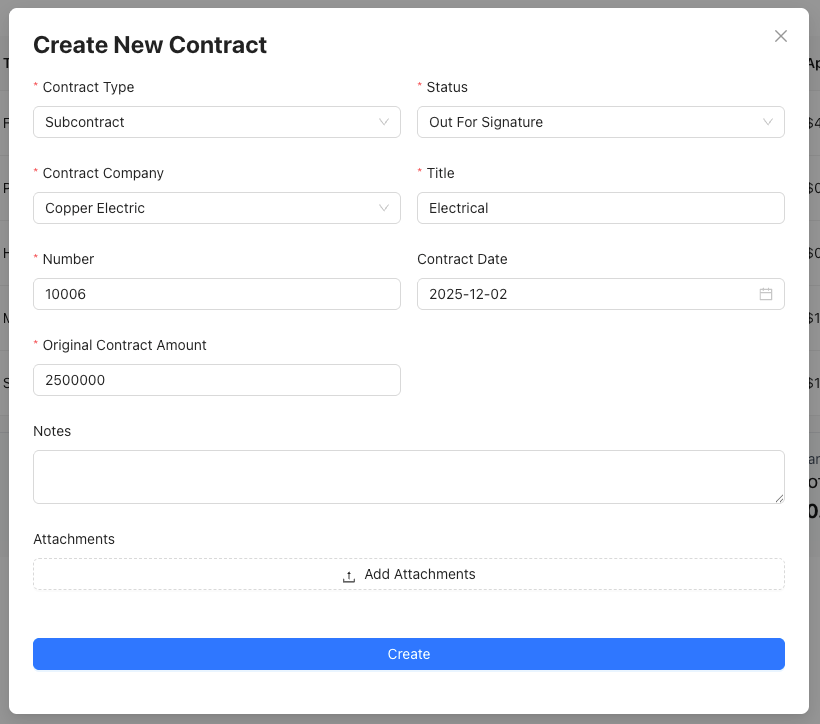
Creating contracts in SubmittalLink starts with choosing between two contract types: Purchase Orders (PO) and Subcontracts (SC). Both types follow the same streamlined creation process where you enter essential details like contract company, title, number, original contract amount, and status.
The contract creation form captures everything you need upfront. You'll select your contract type, identify the contract company, assign a unique number (the system can auto-generate these), and set the original contract amount. The status field lets you track where each contract stands, whether it's still a draft, out for bid, out for signature, or fully executed.
What makes this particularly useful is the attachments feature. You can upload critical documents right to the contract record: schedule of values, executed contracts, scope of work documents, certificates of insurance, and labor rate sheets. Everything lives in one place rather than scattered across email threads or shared drives, similar to how you can attach schedule of values and scope of work directly to change orders or contracts in the platform.
Managing Change Orders Throughout the Project Lifecycle
Managing change orders in SubmittalLink connects directly to your existing contracts, creating an auditable trail of how project scope and costs evolve. Each change order links to a specific contract and tracks its own lifecycle from draft through approval.
When you create a change order, you'll assign it a number, give it a descriptive title, and designate a change order manager. The amount field captures the financial impact, whether it's adding costs or (occasionally) reducing them. You'll also select a contract from your existing list, since every change order must tie back to a parent contract.
The status dropdown is where workflow happens. Draft means you're still working on it. Pending signals it's been submitted and awaiting review. Approved means it's been accepted and should roll into your contract totals. Rejected means it didn't make the cut. This status field drives the financial calculations that happen automatically in your contracts table.
You can also toggle whether the change order has been invoiced and whether it's paid. The assignee field helps with accountability, though you'll need to select a contract first before assigning someone. There's room for notes and attachments too, scope clarifications, sketches, RFIs, whatever documentation supports the change.
Real-Time Financial Tracking Across All Contracts
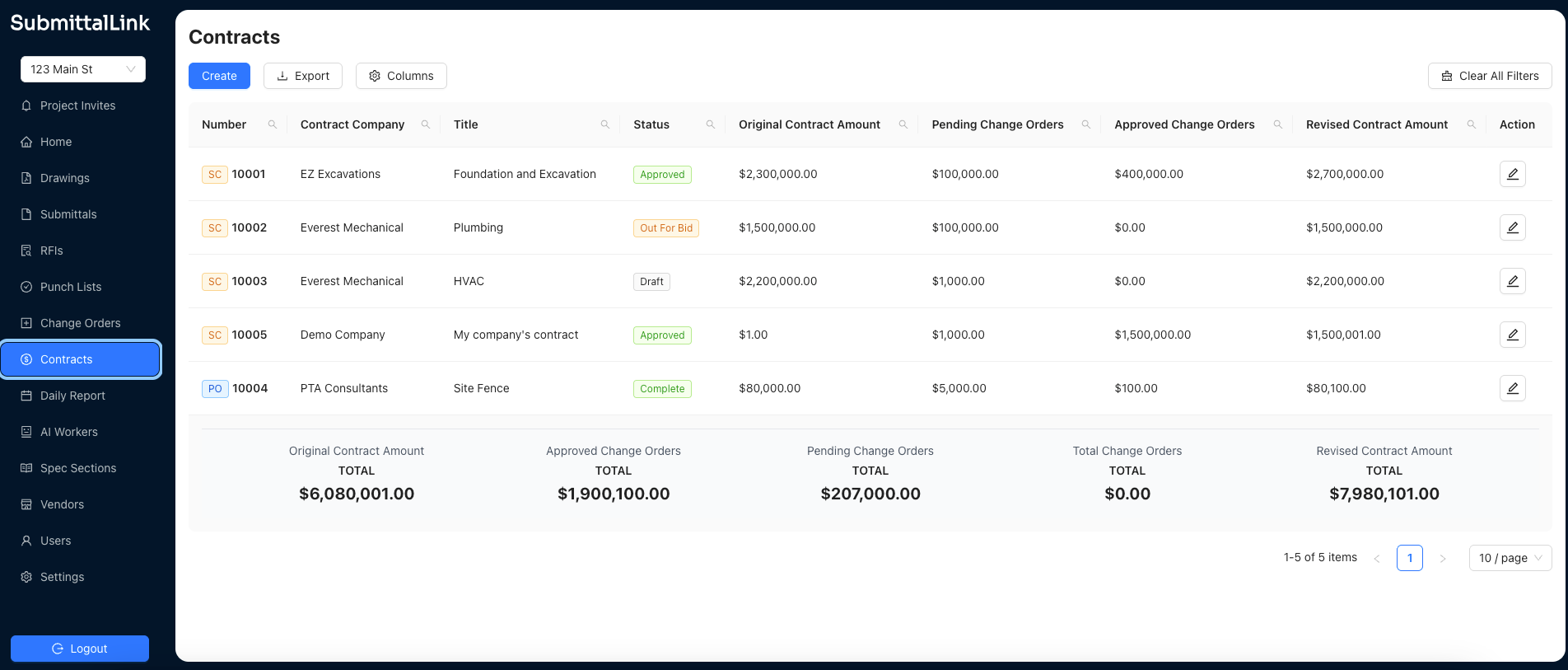
Real-time financial tracking in SubmittalLink automatically calculates your project's financial position as contracts and change orders move through their workflows. The Contracts table displays running totals that update based on change order statuses, no manual spreadsheet updates required.
At the bottom of the Contracts table, you'll see five critical totals. Original Contract Amount shows your baseline before any changes. Approved Change Orders tallies all change orders with "Approved" status. Pending Change Orders adds up everything still awaiting approval. Total Change Orders combines both approved and pending amounts. Finally, Revised Contract Amount shows your new total: original amount plus approved change orders.
These calculations happen instantly. When you approve a change order, the numbers update immediately. This gives you current visibility into where your project stands financially without waiting for someone to update a master spreadsheet at the end of the week.
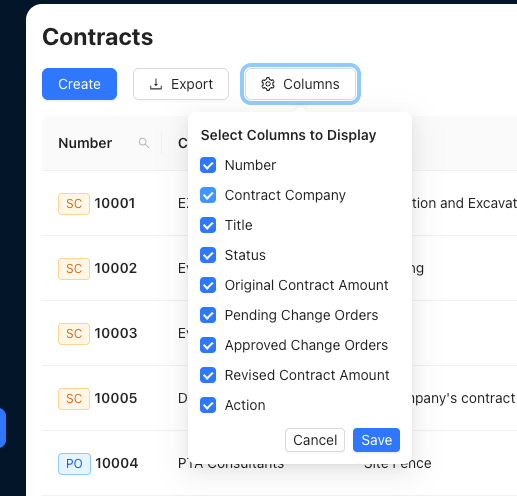
The column customization feature lets you show exactly what your team needs to see. Click the Columns button and select which fields to display, you might want to see pending and approved change orders side by side, or you might just care about the revised total. The system saves your preferences so your view stays consistent.
Why This Approach Works for Construction Teams
This approach works for construction teams because it eliminates the version control chaos that plagues traditional contract management. When your contract data lives in a purpose-built system instead of email attachments and local spreadsheets, everyone works from the same information, the same principle that makes dedicated construction submittal software more effective than Excel.
The status-driven workflow creates accountability. You know which change orders are still drafts, which are awaiting approval, and which have been accepted. The automatic financial rollups mean you're never wondering if someone forgot to add a change order to the project total.
Having attachments directly on contract and change order records means you're not hunting through shared drives or email to find the backup documentation. The schedule of values, insurance certificates, and scope documents live right where you need them.
For project managers and owners, the real-time totals provide instant answers to questions like "What's our current contract value?" or "How much is pending in change orders?" You're not waiting for reports or asking someone to run calculations.
The system scales naturally as your project grows. Whether you're managing five contracts or fifty, the interface and workflow stay the same. The table view gives you a comprehensive look at all contracts, while the individual contract and change order forms let you drill into specifics when needed.
Integrating Contract Management With Your Submittal Workflow
Integrating contract management with your submittal workflow creates powerful connections across your project documentation. When you're reviewing a construction submittal that includes cost implications, you can reference the associated contract and potentially create a change order, all within the same platform.
This integration matters because change orders often originate from the submittal review process. An engineer catches a discrepancy in shop drawings. A product substitution changes the pricing. The architect requires an upgrade that wasn't in the original spec. When your contracts, change orders, and submittals live in the same system, you're not switching between tools to connect the dots.
The real power shows up during closeout. You've got your executed contracts with all approved change orders reflected in your revised totals. Your submittal log shows everything that was submitted, reviewed, and approved throughout the project. And because it's all in SubmittalLink, you're not scrambling to compile documentation from six different sources when the owner asks for records.
Frequently Asked Questions
How do I track which change orders have been invoiced and paid?
Track invoiced and paid change orders using the toggle switches on each change order record. The "Invoiced Date" field and "Paid" toggle let you mark when you've billed for the work and when you've received payment. The Contracts table can display these statuses as columns, so you can quickly scan which approved change orders are still awaiting payment.
Can I see the total value of all pending change orders across my project?
See total pending change orders in the summary row at the bottom of the Contracts table. The "Pending Change Orders TOTAL" field automatically sums all change orders with "Pending" status across every contract in your project. This gives you instant visibility into how much additional work is under review and could impact your project budget if approved.
What's the difference between a Purchase Order and a Subcontract in SubmittalLink?
The difference between Purchase Orders (PO) and Subcontracts (SC) is primarily organizational, they help you categorize contracts by type. Purchase Orders typically represent material purchases or equipment rentals, while Subcontracts represent agreements with subcontractors for labor and installation. Both types support the same features: change orders, attachments, status tracking, and financial rollups.
Do I need to manually update contract totals when I approve a change order?
You don't need to manually update contract totals when approving change orders. SubmittalLink automatically recalculates the Revised Contract Amount based on your Original Contract Amount plus all change orders marked as "Approved." When you change a change order status from "Pending" to "Approved," the system instantly updates the contract's revised total and the project-wide summary figures.
Can I attach supporting documentation to change orders?
You can attach supporting documentation directly to each change order record using the Attachments section. Upload RFIs, revised drawings, cost breakdowns, email correspondence, or any other files that support the change order request. These attachments stay with the change order record throughout its lifecycle, making it easy to reference the justification during review or audit.
How do I know who's responsible for reviewing a change order?
Know who's responsible for reviewing change orders by checking the "Change Order Manager" and "Assignee" fields. The Change Order Manager is set when you create the change order, while the Assignee field (which requires selecting a contract first) designates who needs to take action. The system maintains accountability by keeping these assignments visible in the change orders table.
Start Managing Contracts and Change Orders More Effectively
SubmittalLink's contract and change order management turns what's typically a manual, error-prone process into something systematic and reliable. Your contracts become living records that reflect the current state of your project, not historical snapshots that were accurate last week.
Ready to bring the same clarity to your submittals and RFIs? Book a demo to see how SubmittalLink handles contracts, change orders, submittals, and project documentation in one platform or explore our case studies to see how other contractors are saving hours every week.